Text_Input 1.1
Author: erpicci
Introduction
This script allows the player to insert a medium-sized text by typing directly with the keyboard. Inserted text is returned as a string.
Requires
Neon Black's
Keyboard Input Script to work.
It is completely free, both for commercial and non-commercial use. All you are asked to do is to give me credits for the script.
Features
- Plug and play
- Type directly from keyboard
- Use enter to confirm your input
- Use backspace to delete last character
- Use "Esc" to quit the input mode (input process will result in an empty string)
- No known compatibility issues
- Integrates seamlessly with window system
- Additional window configuration (position, size, opacity)
Screenshots
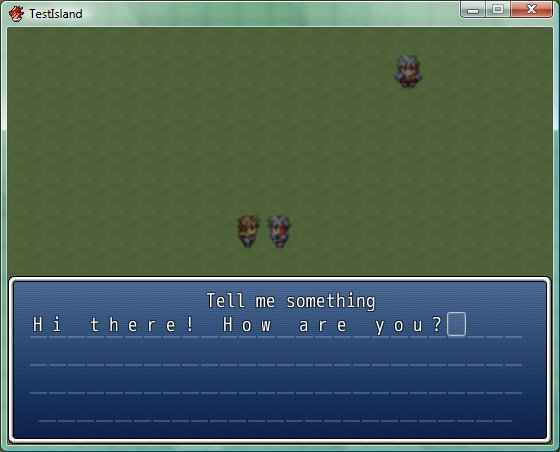
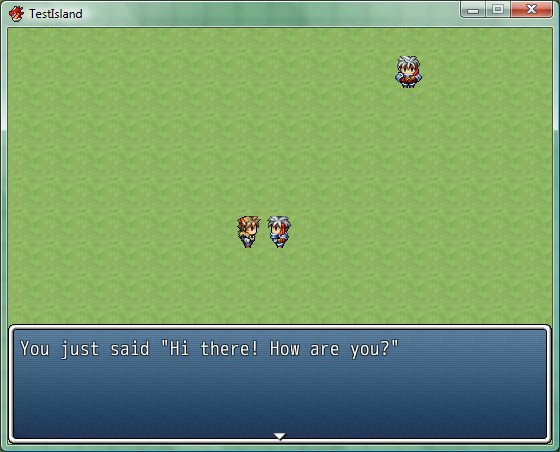
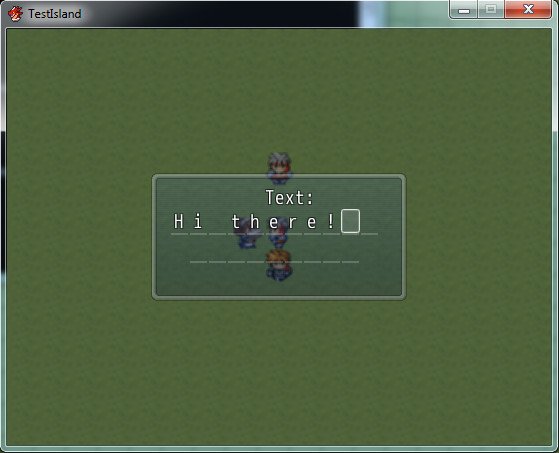
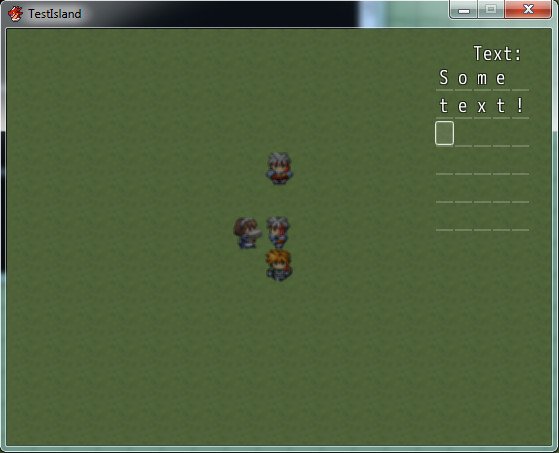
As simple as calling a script. These shots shows how to implement an echo message and how to use other options.
Spoiler
 How to Use
Be sure to have
Neon Black's
Keyboard Input Script installed.
Place this script in the "Materials" section of the scripts above main.
To insert a text using an event, create a script event like:
text_var = text_input("Window Title")
To have a script call the text input, use:
text_var = Scene_Text.read("Window Title")
Only window title is mandatory. As optional arguments, you can set:
- alignment: "center" (default), "left", "right"
- maximum number of character: default is 104
- left-to-right: default is true, use false to get a right-to-left input
- configuration object (see examples)
Examples
Spoiler# Open a window whose title is "Talk to Bobby", text is centered,
# allows to enter up to 20 characters, writing is right-to-left
variable = Scene_Text.read("Talk to Bobby", "center", 20, false)
# Open a window whose title is "Tell me something", text is aligned
# to right, allows to enter up to 88 characters, writing is
# left-to-right (default)
variable = Scene_Text.read("Tell me something", "center", 88)
# Open a window whose title is "Insert text", text is centered
# (default), accepts up to 104 characters (default), writing is
# left-to-right (default)
variable = Scene_Text.read("Insert text")
# Open a window whose title is "Text:", text is centered, allows
# to enter up to 20 characters, writing is left-to-right,
# window is resized, centered in the screen and semi-transparent
config = Scene_Text_Config.new
config.width = 256
config.height = 128
config.verticalAlignment = "center"
config.horizontalAlignment = "center"
config.opacity = 64
variable = Scene_Text.read("Text:", "center", 20, true, config)
# Open a window whose title is "Text:", text is centered, allows
# to enter up to 30 characters, writing is left-to-right,
# window is resized, aligned on the top-right corner and fully transparent
config = Scene_Text_Config.new
config.width = 128
config.height = 256
config.verticalAlignment = "top"
config.horizontalAlignment = "right"
config.opacity = 0
variable = Scene_Text.read("Text:", "center", 30, true, config)
# Open a window whose title is "Text:", text is centered, allows to enter
# up to 20 characters, writing is left-to-right, window is partially
# transparent
config = Scene_Text_Config.new
config.opacity = 160
variable = Scene_Text.read("Text:", "center", 20, true, config)
Script
Spoiler Code:
This script is also available on PasteBin:
http://pastebin.com/dh16PCaj.
Changelog:
Spoiler
- 1.1 [http://pastebin.com/HST0A6bJ] Fixed a memory leak: windows did not get properly disposed. Backward compatible.
- 1.1rc [http://pastebin.com/dh16PCaj] Added options to manipulate the text edit window (position, size, opacity); manipulation is obtained through the new Scene_Text_Config class. Backward compatibile. Activating the scene with no additional config object falls back to previous version.
- 1.0 [http://pastebin.com/TYtbDDPy] Initial release.
FAQ
Q: How do I store the inserted text into a game variable?
A: See
this comment.
Q: How do I insert newlines?
A: This is currently not supported. A workaround is explained in
this comment.
Q: How do I check inserted text to prepare a response?
A: You can use the script to store inserted text into a variable, then you can perform any check you like. For an example, see
this comment.
Q: How can I change windows size, position and opacity?
A: Be sure to have version 1.1rc (or later) installed, then check examples in this page.
Credit and Thanks
- erpicci, author
-
Neon Black, for his
Keyboard Input Script
-
Tsukihime, for his
Simple Text Input script, which I studied to make my own
-
Sixth, for spotting a memory leak in version <1.1 and suggesting how to fix
本贴来自国际rpgmaker官方论坛作者:erpicci处,因国际论坛即将永久关站,为了存档多年珍贵资料,署名转载到本论坛存档,由于官方帖子为英文原帖,需要中文翻译请点击论坛顶部切换语言为中文就可以将帖子翻译成中文浏览,方便大家随时查看,原文地址:
https://forums.rpgmakerweb.com/threads/keyboard-text-input.36828/
 简体中文
简体中文
 English(英语)
 日本語(日语)
 Deutsch(德语)
 Русский язык(俄语)
 بالعربية(阿拉伯语)
 Türkçe(土耳其语)
 Português(葡萄牙语)
 ภาษาไทย(泰国语)
 한어(朝鲜语/韩语)
 Français(法语)





 Keyboard Text Input: Keyboard Text Input-2.jpg