Hi, game devs! Here's another tutorial from
RPG Maker Game Reviews!
Sometimes, you don't need to get into JavaScript to manipulate a plugin to do what you want. Here's my untechy fix for Rexal and Yanfly's Animated Enemies.
The Animated Enemies Problem
Below, you'll see that I'm using RPG Maker MV with Yanfly's Core Engine, Battle Core, Standard Battle, and Animated Enemies. I'm also using Rexal's Animated Enemies.
With the code as is, I was not able to put a weapon in the enemies' hands or make them do anything but thrust when attacking. Asking the plugin developers for help is untenable, and I did not find workable solutions on RPG Maker forums. So, rather than giving up on Animated Enemies or settling for a less than desirable result, I opted for image manipulation.
The Animated Enemies Solution
Here is a screenshot of how my enemy looks in battle now followed by instructions on how I reached this result. It does not require any plugin manipulation or special graphic-editing software.
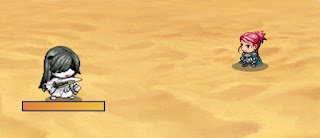 Looks nice holding weapon all the time
I especially enjoy how the enemy is holding her weapon at all times. If I had been able to make the plugins work properly, she would only have been able to whip out her weapon on attack.
Animated Enemies Workaround Instructions
1. First, in my plugins list, I have the applicable plugins in this order:
- YEP Core Engine
- YEP Battle Engine
- YEP X Standard Battle (not necessary for this fix, but I'm using it)
- Rexal Animated SV Enemies
- YEP X Animated SV Enemies
2. In my enemy notetag, I have written:
- [SV Animated]
- <Sideview Battler: Yapheh Dagger>
I have named the sprite sheet in my Actor's folder "Yapheh Dagger" as well as the placeholder enemy in my SV Enemies' folder. In this case, I copied the RTP imp enemy and renamed it "Yapheh Dagger". I then selected the "Yapheh Dagger" imp as my enemy image. You need to name an SV enemy the same thing you name your actor.
3. Create a troop with your placeholder enemies.
4. Alter your actor sprite sheet. I used PowerPoint and Paint. You could also use Word and Paint.
 Finished sprite sheet
Insert your sprite sheet into Word or PowerPoint. Insert the weapon that you want to use. Make sure that it has a transparent background. If it doesn't, use the Color button under the Picture Format tab to make the background transparent.
Position the weapon over the sprite. Notice that only the first 6 sprite images will be used for standing and attacking. Group the weapon images to the sprite sheet.
Crop the hand off of one of your sprites and save it as a different image. Undo the cropping, then insert the saved hand image. Position the hand over the weapons and group them to the sprite sheet.
If you're happy with the result, save the image with the same name as your placeholder enemy, and you're done!
But...
You might want to scale your sprite. To do so, open the image in Paint and resize it to your liking. I've kept my enemy a little bigger than the actor for this example. If you do resize the image in Paint, remember to open it in Word or PowerPoint again to restore the transparent background. Save the image again once you've done so.
You can also rearrange the sprite sheet images.
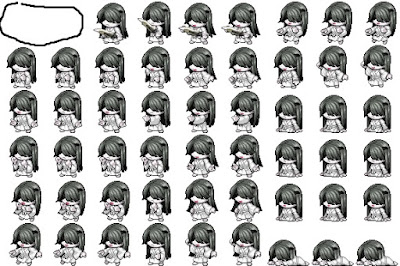 Deleting sprite images
Using Paint, I erased the first two sprite images in the row. You could also crop the image and save each piece as different files, then group them back together. If you use Paint, beware that you will lose your transparent background. You can set the background transparent again using the Color button on the Picture Format tab, but if you used white in your sprite, that portion of your image might become transparent as well.
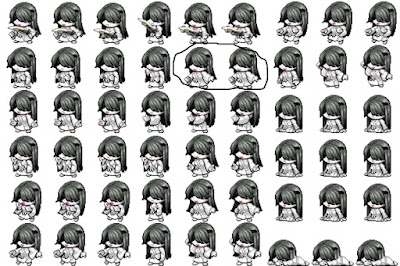 Altering the Sprite Sheet
I then cropped two different sprite images that I thought would work better with the stance and weapon, saved them as a different file, then inserted and grouped them back onto the image.
You can arrange the sprite sheet any way you wish to achieve the stance and attack motions that you desire for your weapons.
If you want to make your enemy have random weapons or a different weapon for each encounter, create different sprite sheets for each weapon and set them as separate placeholder enemies in different troops or use Rexal's Random Enemies plugin.
I hope this helps!
Steve
本贴来自国际rpgmaker官方论坛作者:Randor处,因国际论坛即将永久关站,为了存档多年珍贵资料,署名转载到本论坛存档,由于官方帖子为英文原帖,需要中文翻译请点击论坛顶部切换语言为中文就可以将帖子翻译成中文浏览,方便大家随时查看,原文地址:
https://forums.rpgmakerweb.com/threads/how-to-animate-enemy-battlers-with-weapons-no-javascript-changes.110225/ 简体中文
简体中文
 English(英语)
 日本語(日语)
 Deutsch(德语)
 Русский язык(俄语)
 بالعربية(阿拉伯语)
 Türkçe(土耳其语)
 Português(葡萄牙语)
 ภาษาไทย(泰国语)
 한어(朝鲜语/韩语)
 Français(法语)

 聊天机器人
聊天机器人




 窥视卡
窥视卡 雷达卡
雷达卡



 发表于
发表于 


 提升卡
提升卡 置顶卡
置顶卡 沉默卡
沉默卡 喧嚣卡
喧嚣卡 变色卡
变色卡 千斤顶
千斤顶 照妖镜
照妖镜